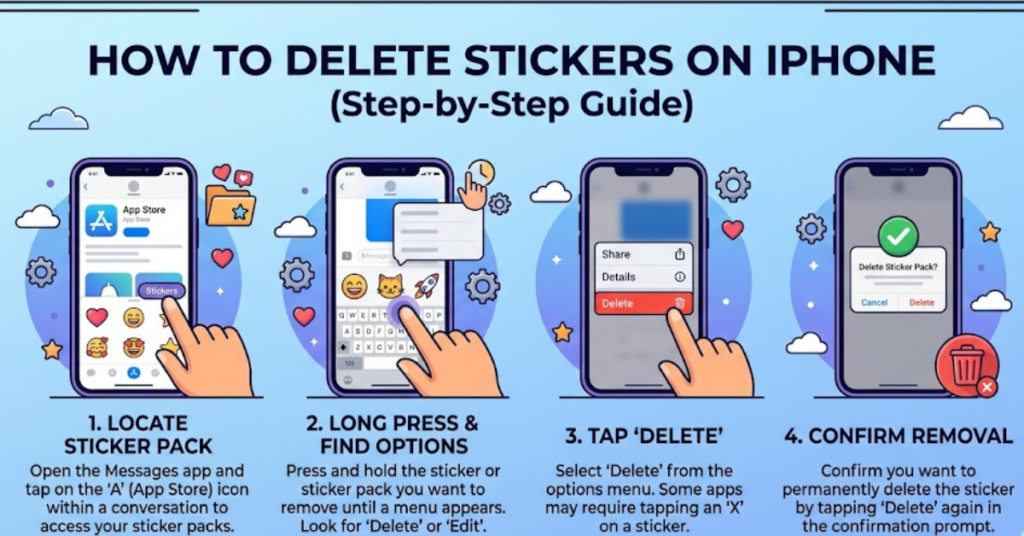

Stickers make conversations fun, but sometimes they clutter your Messages app or take up unnecessary space. If you’re wondering how to delete stickers on iPhone, you’re not alone. Many users accidentally install sticker packs or create custom stickers and later want to remove them.
This guide walks you through how to delete stickers on iPhone step by step — whether they’re from iMessage apps, custom photos, or third-party sticker packs. By the end, you’ll have a clean, organized Messages app and better control over your sticker collection.
Why You Might Want to Delete Stickers on iPhone
Before jumping into the steps, here are a few common reasons people remove stickers:
- Too many sticker packs cluttering the keyboard
- Accidentally installed sticker apps
- Want to remove custom photo stickers
- Messages app running slow
- Free up storage space
No matter your reason, removing stickers is quick once you know where to look.
How to Delete Stickers on iPhone from iMessage Sticker Packs
If you installed stickers from the App Store, follow these steps:
Step-by-Step Instructions
- Open the Messages app
- Open any conversation
- Tap the App Store icon next to the text box
- Swipe left on the app drawer until you see More (•••)
- Tap Edit in the top-right corner
- Toggle off sticker apps you want to remove OR tap Delete
- Tap Done
This method removes sticker packs from your iMessage app drawer instantly.
How to Delete Individual Stickers on iPhone
If you created custom stickers (iOS 17 and later), here’s how to delete them:
Remove Custom Photo Stickers
- Open Messages
- Tap inside a conversation
- Tap the + icon
- Select Stickers
- Press and hold the sticker you want to delete
- Tap Delete
The sticker will be removed immediately.
How to Remove Sticker Apps from iPhone Completely
Sometimes you need to uninstall the entire sticker app.
Method: Delete the App
- Go to the Home Screen
- Find the sticker app
- Press and hold the app icon
- Tap Remove App
- Select Delete App
- Confirm
This removes all stickers associated with that app.
How to Hide Stickers Without Deleting Them
Not ready to delete? You can hide them instead:
- Open Messages
- Tap App Store icon
- Tap More (•••)
- Select Edit
- Toggle off sticker appsThis keeps them installed but hidden from your keyboard.
Tips to Manage iPhone Stickers Better
Here are some quick tips to keep your sticker library organized:
- Only install sticker packs you actually use
- Delete unused custom stickers regularly
- Hide instead of delete if unsure
- Update iOS to manage stickers smoothly
- Remove bulky sticker apps to save storage
FAQs About How to Delete Stickers on iPhone
1. Why can’t I delete stickers on my iPhone?
You may be trying to delete built-in stickers. Only third-party or custom stickers can be removed. Try deleting the associated app.
2. Does deleting a sticker app remove all stickers?
Yes. When you delete the app, all stickers from that pack are removed.
3. Can I recover deleted stickers?
No, once deleted, you’ll need to reinstall the sticker app or recreate the sticker.
4. How do I delete stickers from WhatsApp on iPhone?
Open WhatsApp → Stickers → Tap + → My Stickers → Swipe left → Delete.
5. Do stickers take up storage space?
Yes, especially large sticker packs. Removing them can free up space.
Conclusion
Learning how to delete stickers on iPhone is simple once you know where to look. Whether you’re removing sticker packs, deleting custom photo stickers, or uninstalling apps, the process only takes a few taps. Keeping your sticker library clean improves organization, speeds up Messages, and reduces clutter.