
If your iPhone is running out of storage or your home screen feels cluttered, learning how to delete apps on iPhone can make a big difference. Whether you’re using the latest iPhone 15 or an older model, removing unused apps helps improve performance and keeps things organized.
In this guide, you’ll discover how to delete apps on iPhone permanently, remove hidden apps, and manage apps effectively using different methods. Let’s walk through everything step by step.
Why You Should Delete Unused Apps
Before jumping into the steps, here’s why deleting apps matters:
- Free up storage space
- Improve iPhone performance
- Reduce home screen clutter
- Prevent background battery drain
- Keep personal data more secure
How to Delete Apps on iPhone Standard Method
This is the easiest and most common way.
Steps:
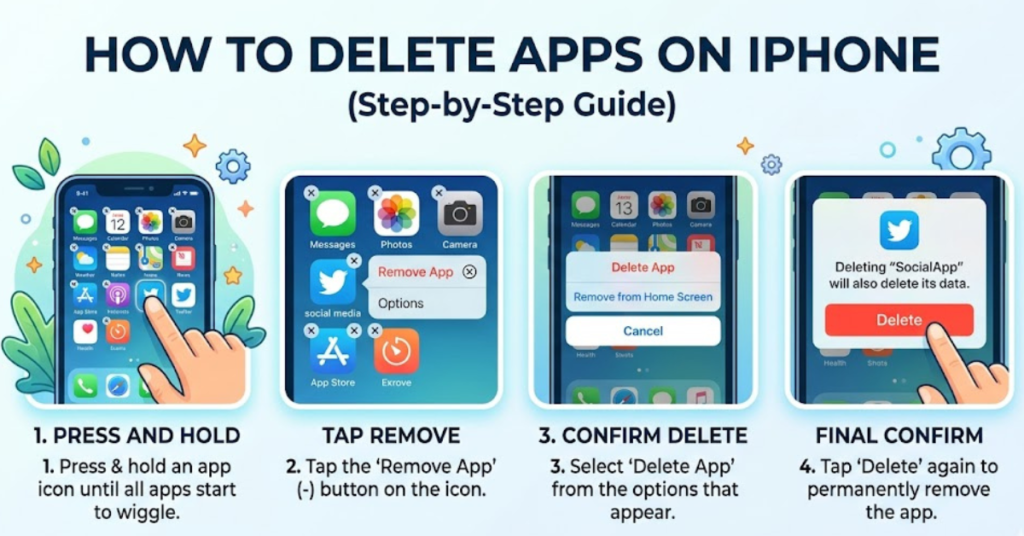
- Go to your Home Screen
- Press and hold the app you want to delete
- Tap Remove App
- Select Delete App
- Tap Delete to confirm
That’s it! The app is removed from your device.
This method works on most iPhones, including how to delete apps on iPhone 15.
How to Delete Apps on iPhone Permanently
Deleting an app removes it, but sometimes you also want to ensure it’s completely gone.
Follow these steps:
- Delete the app using the standard method
- Open Settings
- Go to General → iPhone Storage
- Check if the app still appears
- If listed, tap it and choose Delete App
This ensures the app and its stored data are removed permanently.
How to Delete Apps on iPhone That Are Hidden
Hidden apps can be tricky because they don’t appear on your home screen.
Method 1: Use App Library
- Swipe left until you reach App Library
- Search for the hidden app in the search bar
- Press and hold the app icon
- Tap Delete App
- Confirm deletion
Method 2: Use iPhone Storage
- Go to Settings
- Tap General
- Select iPhone Storage
- Scroll to find the hidden app
- Tap it and choose Delete App
This is the best way to handle how to delete apps on iPhone that are hidden.
How to Delete Apps on iPhone 15
The process on iPhone 15 is similar but with slightly updated menus.
Steps for iPhone 15:
- Long-press the app icon
- Tap Remove App
- Select Delete App
- Confirm by tapping Delete
You can also:
- Delete from App Library
- Remove through Settings → iPhone Storage
Delete Apps from App Library
You don’t need to add apps back to your home screen first.
- Swipe left to App Library
- Find the app
- Long press the icon
- Tap Delete App
- Confirm
Delete Built-in Apple Apps
Apple allows deleting many default apps like:
- Weather
- Stocks
- Tips
- Maps
Simply use the same long-press method.
Some apps like Phone or Settings cannot be deleted.
Remove Apps Without Deleting Data Offload Apps
If you want to keep data but remove the app:
- Go to Settings
- Tap General
- Select iPhone Storage
- Tap the app
- Choose Offload App
This is helpful if you may reinstall later.
Troubleshooting: Can’t Delete Apps?
If you can’t delete apps, try these fixes:
- Disable Screen Time restrictions
- Restart your iPhone
- Check Device Management profiles
- Update iOS
- Turn off Content & Privacy Restrictions
Disable Restrictions:
- Go to Settings
- Tap Screen Time
- Select Content & Privacy Restrictions
- Tap iTunes & App Store Purchases
- Allow Deleting Apps
FAQs
1. How do I delete apps on iPhone permanently?
Delete the app normally, then check Settings → iPhone Storage and remove any remaining data.
2. Why can’t I delete apps on my iPhone?
You may have Screen Time restrictions enabled or the app may be a system app that cannot be removed.
3. How to delete apps on iPhone that are hidden?
Use App Library search or Settings → iPhone Storage to locate and delete hidden apps.
4. Does deleting an app cancel subscriptions?
No. You must cancel subscriptions in Settings → Apple ID → Subscriptions.
5. How do I delete apps on iPhone 15?
Long-press the app, tap Remove App, then choose Delete App.
6. Can I recover deleted apps?
Yes. Open the App Store, search for the app, and reinstall it.
Conclusion
Knowing how to delete apps on iPhone helps you keep your device clean, fast, and organized. Whether you want to delete apps permanently, remove hidden apps, or manage storage on your iPhone 15, the steps are simple and quick.
Start by clearing out apps you no longer use, check hidden apps in storage, and regularly manage your App Library. Your iPhone will feel faster and more efficient instantly.
If you found this guide helpful, consider exploring more iPhone tips to optimize storage, boost battery life, and improve performance.