
Ever clicked once on your mouse only to watch it open files twice, drag the wrong item, or randomly select text? It’s one of the most frustrating computer problems, especially when you’re working, gaming, or browsing online. The good news is that learning how to fix mouse double clicking issues is usually easier than most people think.
Mouse double clicking can happen because of software glitches, outdated drivers, incorrect settings, dust buildup, or worn-out hardware switches. In this guide, you’ll learn practical solutions that work for both wired and wireless mice on Windows, macOS, and even gaming mice from brands like Logitech, Razer, and SteelSeries.
What Causes a Mouse to Double Click?
Before fixing the problem, it helps to understand why it happens in the first place.
Here are the most common causes:
- Worn-out mouse switches
- Incorrect double-click speed settings
- Outdated or corrupted mouse drivers
- Dust and debris inside the mouse
- Low battery in wireless mice
- USB connection problems
- Software conflicts or firmware bugs
Sometimes the issue is temporary. Other times, the mouse hardware itself is failing.
Quick Ways to Fix Mouse Double Clicking
If you need a fast solution, start with these basic troubleshooting steps.
1. Restart Your Computer
It sounds simple, but a reboot can reset temporary software glitches affecting mouse input.
Steps:
- Save your work
- Restart your PC or Mac
- Test the mouse again
If the issue disappears, the problem was likely software-related.
2. Try a Different USB Port
Faulty USB ports can interfere with mouse signals.
What to do:
- Disconnect the mouse
- Plug it into another USB port
- Avoid using USB hubs temporarily
- Test again
For wireless mice, reconnect the USB receiver directly to the computer.
3. Replace or Recharge the Battery
Wireless mice often behave unpredictably when the battery gets weak.
Signs of low battery:
- Lagging cursor
- Random disconnects
- Double clicking
- Delayed response
Insert fresh batteries or fully recharge the mouse before testing again.
Adjust Mouse Double-Click Settings
Sometimes the mouse itself is fine, but your system settings are too sensitive.
How to Fix Mouse Double Clicking on Windows
Windows 10 and Windows 11:
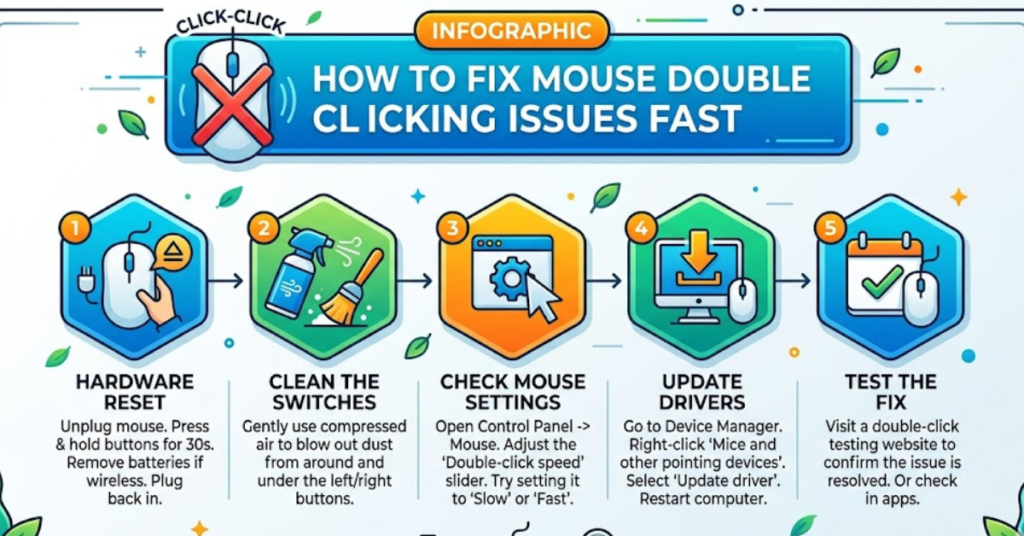
- Open Control Panel
- Click Mouse
- Locate the Double-click speed slider
- Move it slightly toward Slow
- Click Apply
Test the folder icon in the settings window to see if the issue improves.
Why this works:
If the click speed is set too fast, Windows may interpret one click as two separate clicks.
How to Fix Mouse Double Clicking on macOS
Steps:
- Open System Settings
- Go to Accessibility
- Select Pointer Control
- Adjust the Double-click speed
Lowering sensitivity can reduce accidental double clicks.
Update or Reinstall Mouse Drivers
Corrupted drivers are another major reason behind double-clicking issues.
Update Mouse Drivers on Windows
Steps:
- Right-click the Start Menu
- Open Device Manager
- Expand Mice and other pointing devices
- Right-click your mouse
- Choose Update driver
Restart your computer after updating.
Reinstall the Mouse Driver
If updating doesn’t help, reinstalling may fix corrupted files.
Steps:
- Open Device Manager
- Right-click the mouse
- Select Uninstall device
- Restart the computer
Windows will automatically reinstall the driver during startup.
Clean Your Mouse Properly
Dust and dirt can interfere with the internal switches and buttons.
How to Clean a Mouse Safely
You’ll need:
- Compressed air
- Cotton swabs
- Isopropyl alcohol (70% or higher)
- Microfiber cloth
Cleaning process:
- Disconnect the mouse
- Blow compressed air around the buttons
- Use a cotton swab lightly dipped in alcohol
- Clean around the click mechanism
- Let it dry completely
This method works especially well for sticky mouse buttons.
Check for Software Conflicts
Certain applications can interfere with mouse behavior.
Common Problematic Software
- Gaming overlays
- Mouse customization apps
- Macro software
- Third-party driver utilities
Try this:
- Close unnecessary background apps
- Disable mouse macros
- Boot into Safe Mode
- Test the mouse again
If the problem disappears in Safe Mode, software interference is likely the cause.
Fix Double Clicking on Gaming Mice
Gaming mice are more prone to switch wear because of intensive clicking.
Common Gaming Mouse Brands Affected
- Logitech
- Razer
- Corsair
- SteelSeries
- Glorious
Solutions:
- Update mouse firmware
- Lower debounce settings carefully
- Reset onboard profiles
- Use manufacturer software updates
Some gaming mice develop “switch chatter,” where worn switches register multiple clicks unintentionally.
Test the Mouse on Another Computer
This step helps determine whether the problem is hardware or software related.
Results Interpretation
If the mouse double clicks on another computer:
The mouse hardware is likely defective.
If the problem disappears:
Your operating system or drivers are probably causing the issue.
This simple test can save a lot of unnecessary troubleshooting.
Advanced Fix: Repair the Mouse Switch
If you’re comfortable opening electronics, you may be able to repair the mouse.
Warning
Opening the mouse can void the warranty.
What Usually Fails?
Inside most mice are tiny mechanical switches that wear out over time.
Possible fixes:
- Replace the microswitch
- Bend the spring plate carefully
- Solder in a new switch
This repair is popular among PC enthusiasts and gamers.
When Should You Replace the Mouse?
Sometimes replacement is the smartest option.
Signs You Need a New Mouse
- Persistent double clicking
- Random disconnects
- Broken scroll wheel
- Physical damage
- Extremely old hardware
A quality mouse can last several years, but heavily used devices eventually wear out.
Tips to Prevent Mouse Double Clicking
Prevention is easier than repair.
Best Practices
- Keep your mouse clean
- Avoid aggressive clicking
- Use a mouse pad
- Store wireless mice properly
- Update drivers regularly
- Keep liquids away from the device
Taking care of the hardware can significantly extend its lifespan.
FAQs About How to Fix Mouse Double Clicking
Why is my mouse double clicking when I click once?
This usually happens because of worn-out switches, incorrect settings, driver issues, or dirt inside the mouse.
Can software cause mouse double clicking?
Yes. Corrupted drivers, gaming software, and third-party mouse utilities can trigger accidental double clicks.
How do I fix double clicking on a Logitech mouse?
Start by updating Logitech G Hub or Options software, adjusting double-click settings, cleaning the mouse, and checking firmware updates.
Is mouse double clicking a hardware issue?
Often it is. Older mice commonly develop faulty microswitches that register extra clicks.
Can I repair a mouse double-click issue permanently?
Yes, replacing the faulty microswitch can permanently solve the issue if hardware failure is the cause.
Why does my gaming mouse double click?
Gaming mice experience heavy usage, which can wear out the click switches faster than standard mice.
Conclusion
Learning how to fix mouse double clicking problems can save you from unnecessary frustration and help extend the life of your device. In many cases, the solution is simple: adjusting settings, cleaning the mouse, updating drivers, or replacing batteries. If those steps don’t work, the issue may come from worn-out hardware switches that need repair or replacement.
Start with the easiest fixes first before spending money on a new mouse. A few minutes of troubleshooting can often restore smooth, accurate clicking and make your computer experience much more enjoyable.