
Is your iPhone running slower than usual? Apps crashing, Safari lagging, or storage mysteriously filling up? One of the simplest fixes is learning how to clear cache on iPhone. Cached data helps apps load faster, but over time it can pile up and cause performance issues.
In this guide, you’ll learn how to clear cache on iPhone apps, Safari, and specific models like iPhone 13. We’ll walk through step‑by‑step methods, explain when to clear cache, and share tips to keep your device running smoothly.
What Is Cache on iPhone?
Cache is temporary data stored by apps and browsers. It helps your iPhone load content faster, but it can also:
- Take up storage space
- Cause apps to misbehave
- Lead to outdated content loading
- Slow down your device
Clearing cache removes temporary files without deleting important data like photos or contacts.
How to Clear Cache on iPhone Safari
Safari is usually the biggest source of cached data. Here’s how to clear it:
Step-by-Step Guide
- Open Settings on your iPhone
- Scroll down and tap Safari
- Tap Clear History and Website Data
- Confirm by selecting Clear History and Data
That’s it! This removes browsing history, cookies, and cache.
When You Should Clear Safari Cache
- Websites not loading correctly
- Login issues
- Slow browsing
- Storage running low
How to Clear Cache on iPhone Apps
Unlike Android, Apple doesn’t provide a universal “clear cache” button. Instead, you can use these methods:
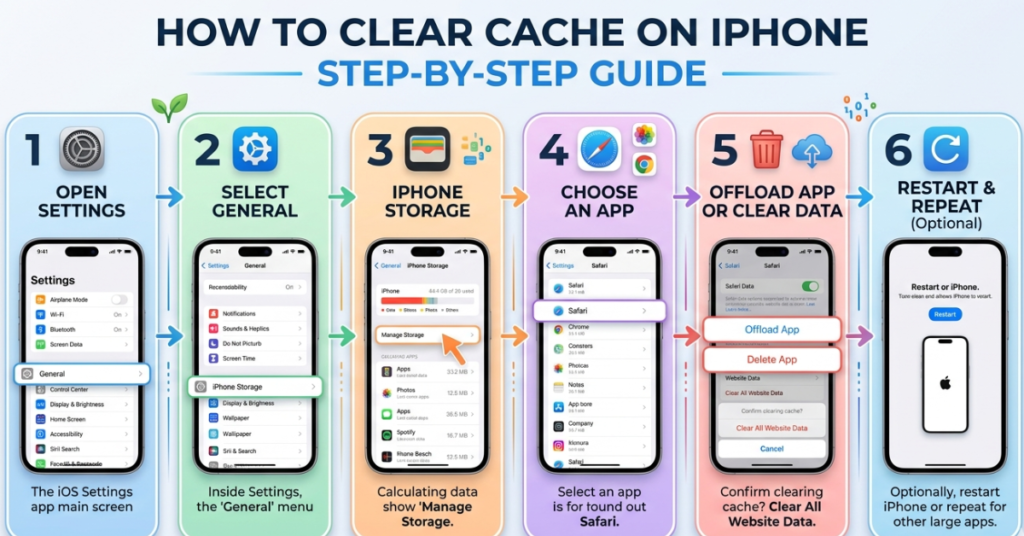
Method 1: Offload App (Recommended)
This keeps your data but removes cached files.
- Go to Settings
- Tap General
- Select iPhone Storage
- Choose the app
- Tap Offload App
- Reinstall from Home Screen
This is the easiest way to clear cache on iPhone apps without losing data.
Method 2: Delete and Reinstall App
This removes all cached data completely.
- Press and hold the app icon
- Tap Remove App
- Select Delete App
- Reinstall from the App Store
Use this for apps that are glitchy or using too much storage.
How to Clear Cache on iPhone 13
The steps are the same for iPhone 13, iPhone 14, and newer models. However, here’s a quick checklist specifically for how to clear cache on iPhone 13:
- Clear Safari cache (Settings > Safari)
- Offload large apps
- Restart your iPhone
- Clear message attachments
Restart Trick Quick Cache Refresh
- Press and hold Volume + Side Button
- Slide to power off
- Turn it back on after 10 seconds
This clears temporary system cache.
How to Clear Cache on iPhone App Quick Tips
Some apps have built‑in cache clearing options:
- Instagram: Delete & reinstall
- Facebook: Clear via in-app browser settings
- TikTok: Settings → Free up space
- Spotify: Settings → Storage → Clear cache
Always check app settings first before deleting.
Other Ways to Free Up Cached Storage
Here are additional methods to clean up hidden cache:
Clear Messages Attachments
- Settings → General → iPhone Storage
- Tap Messages
- Remove large photos/videos
Clear Mail Cache
- Remove and re-add your email account
- This clears downloaded attachments
Clear System Cache
- Restart your iPhone regularly
- Update iOS to latest version
- Enable Offload Unused Apps
Benefits of Clearing Cache on iPhone
Clearing cache regularly can:
- Improve performance
- Free up storage
- Fix app crashes
- Speed up Safari browsing
- Remove outdated files
How Often Should You Clear Cache?
There’s no strict rule, but generally:
- Heavy users: Once every 2–3 weeks
- Casual users: Once a month
- When problems appear: Immediately
Avoid clearing too often, as cache helps apps load faster.
FAQs About How to Clear Cache on iPhone
Does clearing cache delete everything?
No. It only removes temporary files. Your photos, contacts, and apps remain safe.
How do I clear cache on iPhone without deleting apps?
Use Offload App in iPhone Storage. This removes cache but keeps your data.
Is there a clear cache button on iPhone?
No, iOS doesn’t have a universal button. You must clear cache manually for Safari and apps.
How to clear cache on iPhone 13 quickly?
Clear Safari data, offload large apps, and restart your device for quick results.
Does restarting iPhone clear cache?
Yes, restarting clears temporary system cache and improves performance.
Conclusion
Learning how to clear cache on iPhone is one of the easiest ways to improve speed, fix glitches, and free up storage. Start by clearing Safari cache, then remove cached data from apps using Offload or reinstall methods. For users wondering how to clear cache on iPhone apps, these steps work across all models, including iPhone 13.
Make it a habit to clean your cache every few weeks, and your iPhone will stay fast and responsive.